If you want to minify CSS and JavaScript in WordPress, the first thing to know is how much the warning is actually worth. SEO and speed tools flag unminified files on almost every site, but they rarely tell you whether fixing them matters. I decided to find out on my own site, Beeznez Tech, by measuring the real files.
My Rank Math site audit scored 97 out of 100, with three failed tests: minify CSS, minify JavaScript, and a mobile speed test that could not run. Below you will find my PageSpeed Insights scores (95 on mobile, 97 on desktop), the actual file sizes from my homepage, how much minifying would save, what is far heavier than my own code, and five steps to fix it safely.
What Does It Mean to Minify CSS and JavaScript in WordPress?
Minifying removes everything a browser does not need from a code file: spaces, line breaks, comments and long variable names. The file does the same job but is smaller, so it downloads and parses faster. Tools like Google Lighthouse flag files that could be smaller, and Google explains the checks in its guides to unminified CSS and unminified JavaScript.
In WordPress, the files that need minifying come from three places: your theme, your plugins and the scripts you add yourself. Knowing which is which is the key to deciding how to minify CSS and JavaScript in WordPress without breaking anything.
Minifying is different from compressing. Your server (mine uses gzip) compresses files while sending them, and minifying shrinks the file before that happens. The two work together.
What My Homepage Actually Loads
I ran my homepage through PageSpeed Insights first. The performance score was 95 on mobile and 97 on desktop, which is already strong. A score does not tell you which files are responsible, though, so I also measured the files directly: I fetched every stylesheet and script that my homepage loads and checked their sizes. Here is what I found.
| Asset | Size | Estimated size if minified |
|---|---|---|
| 5 first-party stylesheets | 34,309 bytes | about 32,329 bytes |
| 3 first-party scripts | 23,136 bytes | about 22,781 bytes |
| Inline CSS inside the HTML | 24,584 bytes | not measured |
| Homepage HTML (gzip-compressed in transit) | 68,756 bytes | not applicable |
| Two Google tag scripts | about 1,076 KB combined | third-party, not mine to minify |
| One Google ad script | about 207 KB | third-party, not mine to minify |
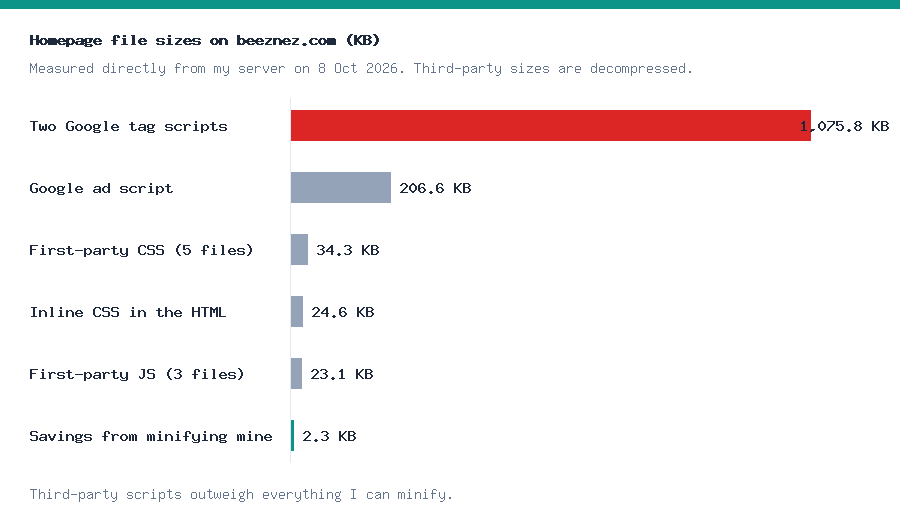
Chart made from my own measurements. The red bar is the two Google tag scripts.
A note on method: I estimated the minified sizes by stripping comments and whitespace myself, so a real minifier may do slightly better or worse. The third-party sizes are the decompressed file sizes my server downloaded. Visitors receive smaller, compressed versions, but the proportions stay the same.
Which Files Were Not Minified
Of my first-party files, some were already minified and some were not:
- Already minified: the GeneratePress stylesheet (
main.min.css) and its menu script (menu.min.js). Their sizes barely changed in my test. - Not minified: my child theme’s
homepage.css(about 11,890 bytes, saving roughly 1,500), plus smaller savings infooter.css, the Recent Posts widget’spublic.cssand myhomepage.js.
Added up, minifying every first-party file would save about 2,335 bytes. My first-party CSS and JavaScript together weigh about 57,445 bytes, so that is a saving of roughly 4%.
The Real Lesson: Third-Party Scripts Are Heavier
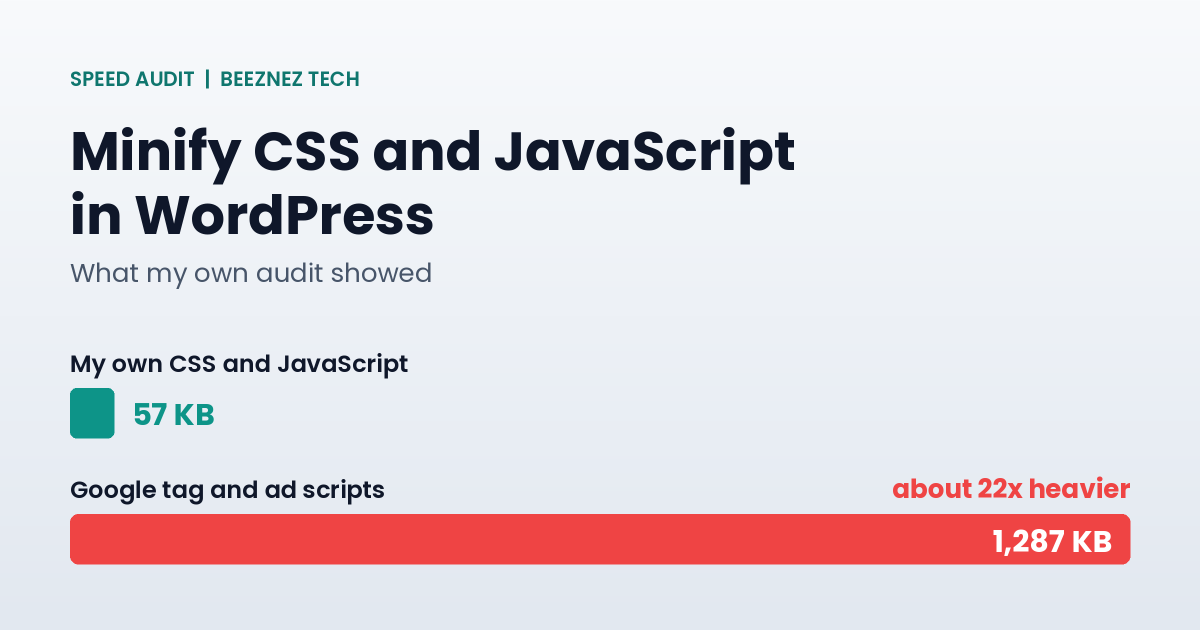
This is the finding that surprised me. The warning I was worried about is worth about 2.3 KB. Meanwhile, three scripts that I do not write (two Google tag scripts and one Google ad script) add up to roughly 1.28 MB on my homepage, which is about 22 times the weight of all my own CSS and JavaScript combined.
You cannot minify those scripts, because they belong to Google. What you can do is decide whether each one is worth loading, load fewer tags, or delay non-essential ones. The minify warning is still worth fixing because it is cheap, but it will not transform your speed on its own.
5 Steps to Minify CSS and JavaScript in WordPress Safely
Step 1: Measure before you change anything
Run your key pages through PageSpeed Insights and save the screenshots. Also write down the number of CSS and JavaScript files and their total size, as I did above. Without a baseline you cannot prove that a fix helped.
Step 2: List every file your pages load
Open your page source or your browser’s Network tab and list the stylesheets and scripts. Note where each one comes from: your theme, a plugin or a third party. This also tells you which plugins you can remove, which I covered in my post on an inactive WordPress plugin vulnerability.
Step 3: Separate what you control from what you do not
This step decides how you will minify CSS and JavaScript in WordPress, because the right method depends on who owns the file.
Files from your theme and plugins can be minified. Third-party scripts cannot. Focus your effort on the first group and treat the second as a loading-decision problem.
Step 4: Choose a method
There are three practical ways to minify CSS and JavaScript in WordPress:
- Fix the source. If you wrote the file (a child theme, for example), minify it once with a build tool or online minifier and load the
.minversion. This is the cleanest option and adds no plugin. - Use an optimization plugin. A plugin such as LiteSpeed Cache (designed for LiteSpeed servers) or Autoptimize can minify files automatically. This is the fastest route for plugin files you cannot edit.
- Remove what you do not need. The smallest file is the one you never load. Deleting unused plugins is the most effective fix of all.
Step 5: Test every page type, then measure again
Minifying and combining files can occasionally break a layout or a form. After any change, check your homepage, a post, your contact form and a mobile view. If something breaks, exclude that file from minification rather than turning the whole feature off. Then re-run your measurements and compare them with the baseline.
What My Hosting Already Does
Before adding anything, check what your host already handles. My site runs on Hostinger Business Web Hosting with a LiteSpeed server. When I requested my homepage, the response came back gzip-compressed and was served through Hostinger’s content delivery network, so compression and delivery were already in place.
What I do not have is a caching or optimization plugin. The LiteSpeed Cache plugin is not installed on my site, which means nothing is minifying my files automatically. That is exactly why the audit flagged them. If your host already offers a built-in optimization feature, check it before installing a plugin, because two tools minifying the same files can cause conflicts.
I also measured how long my server took to answer the homepage request. Two quick tests from the server itself gave me roughly 358 and 647 milliseconds. Those are rough numbers, since they were not measured from a visitor’s browser, but they show why caching and file size both matter.
Mistakes to Avoid When You Minify CSS and JavaScript in WordPress
- Combining everything into one file by default. On modern servers using HTTP/2, combining files matters much less than it used to, and it can cause problems.
- Minifying without a backup. Always keep a recent backup before changing how assets load.
- Stacking optimization plugins. Two plugins both trying to minify the same files cause conflicts.
- Ignoring third-party scripts. As my numbers show, they can outweigh everything you write.
- Trusting a single score. Scores change between runs. Compare file sizes and several test results.
Where I Stand Right Now
To be transparent, this article covers my “before” measurements and the method. I have not yet applied a minification fix on Beeznez Tech, so I cannot report an “after” result. I will update this post with the after numbers once I do. In the meantime, the findings above already answer the most important question: how much is this warning worth? For my site, about 2.3 KB. My baseline PageSpeed Insights performance scores are 95 on mobile and 97 on desktop, so I will compare any later results against those numbers.
The same lesson came up when I checked my 404 log in how to fix 404 errors in WordPress and when I looked at which features were worth paying for in Rank Math Free vs PRO: measure first, then decide what is worth your time.
Quick Checklist
- Record a baseline: PageSpeed screenshots, file count and file sizes.
- List every CSS and JavaScript file and its source.
- Minify files you control at the source.
- Use one optimization plugin at most for the rest.
- Remove plugins and scripts you do not need.
- Test your homepage, a post, your forms and mobile view.
- Measure again and keep the numbers.
Frequently Asked Questions
Is it safe to minify CSS and JavaScript in WordPress?
Usually yes, but not always. Minifying CSS is rarely a problem. Minifying JavaScript can break scripts that depend on load order, so test your site afterwards and exclude any file that misbehaves.
Will minifying CSS and JavaScript improve my Google rankings?
It can help your page speed, which is one of many signals. By itself it will not rank an article. My own numbers show the saving can be small, so treat it as housekeeping rather than a ranking strategy.
Do I need a plugin to minify CSS and JavaScript in WordPress?
No. You can minify CSS and JavaScript in WordPress manually for your own theme files. A plugin is useful for files from other plugins that you cannot edit.
What is the difference between minifying and compressing?
Minifying removes unnecessary characters from the file itself. Compression (such as gzip) shrinks the file while it travels from the server to the browser. Use both.
Why does my speed test still show warnings after I minify?
Third-party scripts, cached results or files from plugins you did not cover can keep the warning alive. Clear your caches and check which file the test names.
My PageSpeed score is already above 90. Should I still minify files?
It is optional at that point. My own scores were 95 on mobile and 97 on desktop, and the minify warning was worth only about 2.3 KB. I would fix it because it is cheap and low risk, but I would not risk breaking my layout to gain a point or two.
Final Thoughts
To minify CSS and JavaScript in WordPress, start by measuring what you load, fix the files you control, and be realistic about the result. On my site the warning was worth about 2.3 KB, while third-party scripts weigh more than a megabyte, and my PageSpeed Insights scores were already 95 on mobile and 97 on desktop. Use the five steps above, keep a backup, and always compare before and after numbers, not just a score.
Related reading: third-party scripts also affect what you can secure. See WordPress Security Headers for the content security policy trade-off. Another hidden load on every page is covered in WordPress autoloaded options. Ad scripts are also why an ads.txt file matters, covered in AdSense ads.txt in WordPress.