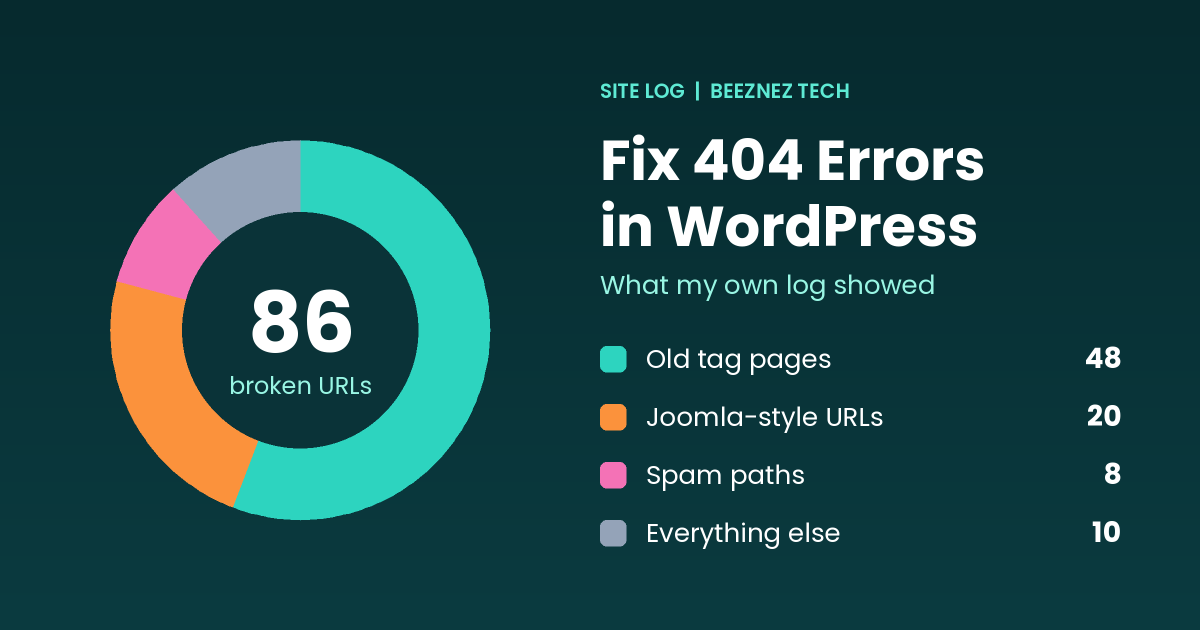
If you want to fix 404 errors in WordPress, the first step is to see which broken URLs people and bots are actually requesting. Most guides skip that step and jump straight to installing a redirect plugin. I did it the other way around: I turned to the 404 log on my own site, Beeznez Tech, and let the data tell me what needed fixing.
The result surprised me. More than half of my broken URLs were old tag pages, and a lot of the rest had nothing to do with my content at all. Below is the full breakdown, the decision rules I now use, and the mistakes to avoid when you fix 404 errors in WordPress on your own site.
What My 404 Log Showed
I use the 404 Monitor module in Rank Math, which records every URL on the site that returned a “not found” response. On the day I wrote this, the log held 86 unique broken URLs and 87 hits in total (one tag URL was requested twice). All of them were logged within about six hours on a single morning.
I sorted every URL into groups:
| Group | URLs | Share | Example pattern |
|---|---|---|---|
| Old tag pages | 48 | 56% | /tag/... |
| Old Joomla-style addresses | 20 | 23% | /2008-05-20-.../, /content/view/..., /templates/... |
| Foreign-language spam paths | 8 | 9% | Short pinyin-style folders ending in .html |
| Everything else | 10 | 12% | Removed posts, empty archives, malformed URLs |
| Total | 86 | 100% |
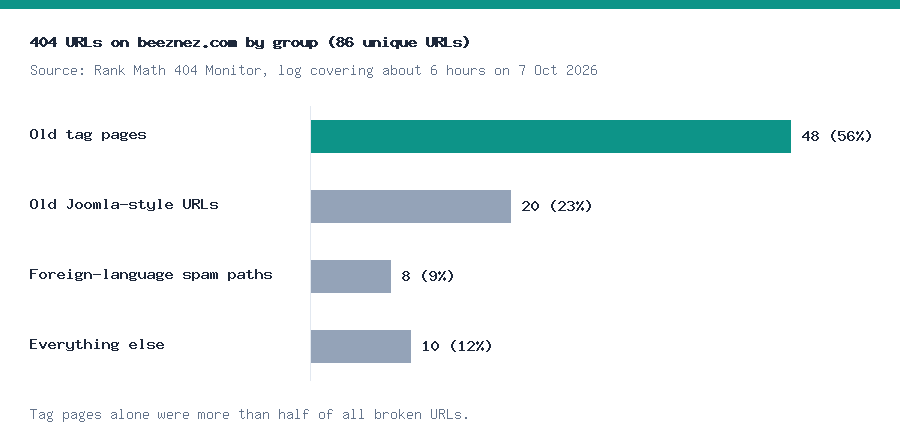
Chart made from my own Rank Math 404 Monitor log. Old tag pages were the largest group.
One more detail matters: none of the 86 entries recorded a referrer or a user agent. That means the log cannot tell me whether the requests came from Google, from old links on other sites, or from automated scanners. I will come back to that, because it changes what you should do.
Why Old Tag Pages Create 404 Errors
My site still has 68 tag terms in WordPress, yet when I request a tag page such as /tag/n8n/, the server returns a 404. So tag archives are not being served on my site, even though the tags exist in the database.
That mismatch is common. Tag pages often disappear for a few reasons:
- The theme or an SEO setting stops tag archives from being displayed.
- The tags were deleted or merged during a content cleanup.
- Posts that carried those tags were removed.
Whatever the cause, the effect is the same. Any link, sitemap entry or crawler that still remembers a tag URL will hit a dead end, and your log fills up. Tag pages are also usually thin pages, which is why many site owners decide not to keep them. If you are cleaning up a site for quality, as I described in my guide to E-E-A-T and AI content in 2026, removing thin tag archives is a sensible choice. You just need to handle the leftover URLs properly.
How to Fix 404 Errors in WordPress: 5 Steps
This is the process I followed, in order.
Step 1: Turn on 404 logging
To fix 404 errors in WordPress, you first need to see them. You cannot fix what you cannot see. Rank Math’s 404 Monitor is one option, and many other SEO and security plugins offer something similar. Google Search Console’s Pages report also lists URLs Google tried and failed to load, which is worth checking alongside your own log.
Step 2: Sort the URLs into groups
Do not look at 86 URLs one by one. Group them by pattern, as in the table above. Patterns tell you the cause. A cluster of /tag/ URLs points to removed archives. Strange folders ending in .html usually point to bots probing for old software or spam pages.
Step 3: Decide what each group deserves
Use this decision table:
| Situation | Best action |
|---|---|
| The old URL has a close replacement page | 301 redirect to that page |
| The content is deliberately gone, with no replacement | 410 “gone” response |
| A real, important page was deleted by mistake | Restore the page |
| Bot or spam probes for pages you never had | Do nothing, or block at server level |
Step 4: Create the redirects
In Rank Math, the Redirections module lets you enter the old URL, choose the status code and set the destination. My site now has 30 redirections: 16 permanent 301 redirects and 14 410 “gone” responses. Together they have handled 593 hits so far, and the busiest single redirect has taken 169 of them. That number is a useful reminder that old URLs keep getting requested long after you remove a page.
Step 5: Re-check every week
Fixing 404 errors in WordPress is not a one-time job. New 404s appear whenever you delete, rename or merge content. Check your log once a week at first, then monthly. If a URL keeps coming back, decide whether it deserves a redirect. If it appears only once, it usually does not.
301 vs 410: Which Should You Use?
This is the question I see most often when people try to fix 404 errors in WordPress, so here is how I decide.
Use a 301 when a page moved or was replaced by something genuinely related. A 301 tells search engines that the move is permanent and passes the old page’s value to the new address. My review posts that I consolidated into stronger guides are good examples.
Use a 410 when the content is gone on purpose and nothing relevant replaces it. A 410 says “this was removed deliberately”, which is clearer than a plain 404. Google has said it treats 404 and 410 very similarly, so the difference is small, but a 410 states your intent and keeps your log tidy. You can read how search engines handle different responses in Google’s documentation on HTTP status codes.
Either way, do not send everything to the homepage. Google may treat that as a soft 404, because the destination does not match what the visitor was looking for.
What About Bot and Spam 404s?
Roughly a third of my log (the Joomla-style and foreign-language paths) looks like automated probing. These are requests for pages that never existed on my site, such as old Joomla template files. I cannot prove that from the log, since no user agent was recorded, but the patterns are typical of scanners that test every site for old software.
My approach to these is simple: do not redirect them. A redirect would tell the bot that the page exists. If the volume becomes a problem, block the pattern at the server or firewall level instead. For a small site, a handful of probe requests per day is normal and harmless.
One URL in my log was a real post address with extra text added to the end, and another was a post that I had removed. Those are worth checking individually, because they point to real content issues rather than random noise.
Common Mistakes When You Fix 404 Errors in WordPress
- Redirecting every 404 to the homepage. It confuses visitors and can create soft 404 problems.
- Redirecting spam URLs. It wastes your redirect list and signals that junk pages exist.
- Using 302 instead of 301. A 302 means “temporary”, which is wrong for permanently removed pages.
- Ignoring the log until traffic drops. A weekly five-minute check is easier than a rescue job.
- Deleting posts without a plan. Decide on a redirect or a 410 at the moment you delete.
- Chasing every single hit. A URL requested once by an unknown source rarely matters.
What I Can and Cannot Prove
I want to be honest about the limits here. My Search Console data, pulled through Rank Math, returned no top keywords for the last 30 days, so I cannot show that cleaning up 404s improved my rankings. What I can show is the cleanup itself: what the log contained, how I grouped it, and which rules I applied.
The benefit of fixing 404s is mostly about hygiene. You stop sending visitors and crawlers to dead ends, you preserve value from pages that moved, and you keep your logs readable so real problems stand out. I covered the same mindset when I audited a flagged plugin in my post on an inactive WordPress plugin vulnerability, and when I looked at which features are worth paying for in Rank Math Free vs PRO.
Quick Checklist to Fix 404 Errors in WordPress
- Turn on a 404 log and let it collect data for at least a week.
- Group URLs by pattern before touching any of them.
- 301 redirect only when a close replacement exists.
- Use 410 for content you removed on purpose.
- Leave bot and spam probes alone.
- Check Search Console’s Pages report for URLs Google found broken.
- Review the log weekly, then monthly.
Frequently Asked Questions
Do 404 errors hurt my WordPress SEO, and should I fix 404 errors in WordPress right away?
A few 404s are normal and do not hurt your site. Problems appear when important pages break, or when many internal links point to dead URLs. The goal is not zero 404s. It is zero broken pages that matter.
Should I redirect deleted tag pages?
Only if a close replacement exists, such as a category page covering the same topic. If not, let them return 404 or use a 410. Redirecting every tag to the homepage is not recommended.
What is the difference between a 404 and a 410?
A 404 means “not found”. A 410 means “gone on purpose”. Search engines treat them similarly, but a 410 clearly states your intent.
How often should I check my 404 log?
Weekly after a big cleanup, then monthly. Always check after deleting or renaming content.
Do I need a plugin to fix 404 errors in WordPress?
No, but a plugin makes it much easier. You can add redirects through your server configuration, but a plugin with a log and a redirect manager saves time and reduces mistakes.
Final Thoughts
The best way to fix 404 errors in WordPress is to start with your own data. My log showed that most broken URLs came from old tag pages and automated probing, not from important content, so a small set of 301 and 410 rules covered what mattered. Group the URLs, choose an action for each group, redirect only when it makes sense, and check again next week.
Related reading
Related reading: automated bots cause more than broken URLs. See what 23 spam comments looked like in WordPress Comment Spam. Another cleanup job is pages that nothing links to, covered in orphan pages in WordPress.