If you use Google AdSense on a WordPress site, you will sooner or later see a warning about AdSense ads.txt. The message says the file is missing, or that your publisher ID is not authorized, and it often warns that your earnings are at risk. Most guides tell you to upload a file and stop there. They rarely explain how to check that the file is actually correct.
So I tested mine. Below you will find the seven checks I ran on my own site, Beeznez Tech, with the real results, what Google’s own status labels mean, and what to do if a check fails. Everything about my file is shown with the publisher ID hidden.
What Is an AdSense ads.txt File?
Ads.txt stands for Authorized Digital Sellers. It is a small public text file, an initiative of the IAB Tech Lab, in which you list the companies allowed to sell advertising on your site. Google explains in its ads.txt guide for AdSense that it helps advertisers avoid counterfeit inventory and helps you receive spend that might otherwise go to fakes.
For AdSense, the file contains one line that names Google and your publisher ID. It must sit in the root of your domain, which means it has to be reachable at yourdomain.com/ads.txt. A copy inside a subfolder, such as your uploads directory, does not count.
What the AdSense ads.txt Statuses Mean
In your AdSense account, the Sites page shows an ads.txt status for each site. According to Google’s site status help page, these are the possible values:
| Status | What it means |
|---|---|
| Authorized | Your publisher ID was found in the site’s ads.txt file. |
| Not found | The AdSense crawler found no ads.txt file the last time it visited. |
| Unauthorized | Your publisher ID was not found in the file, so ad requests from the site are rejected. |
| Not applicable | Your ID is not needed because a platform manages the file. |
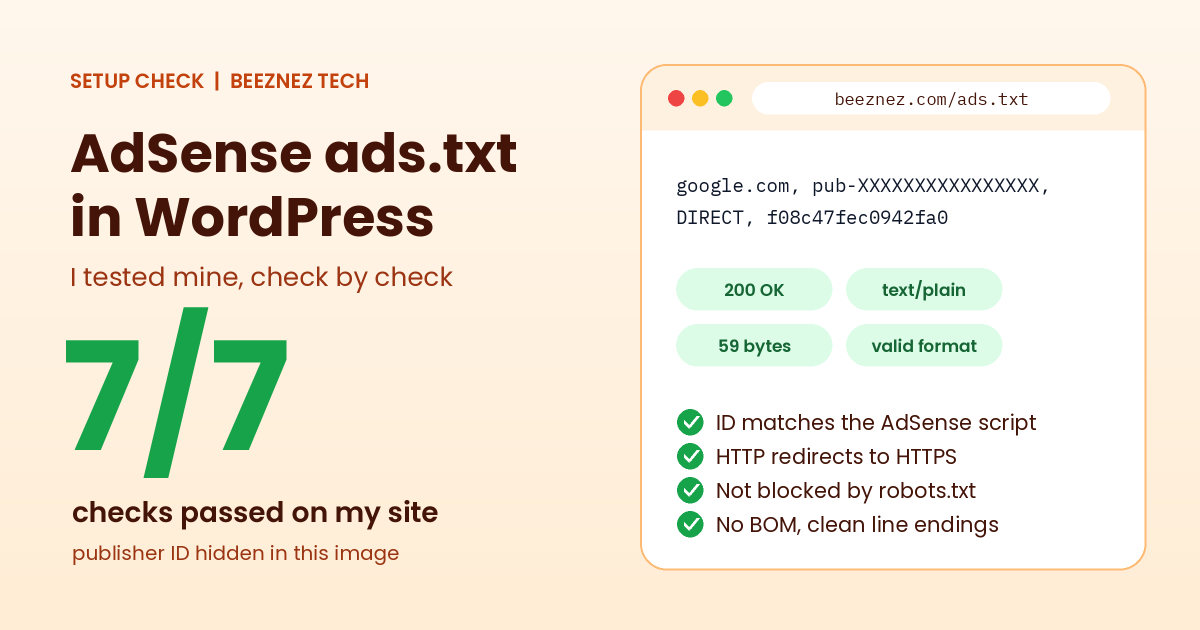
My ads.txt file as seen in a browser, with the publisher ID hidden.
The goal is Authorized. The statuses are produced by Google’s crawler, so only your AdSense account can tell you the final answer. What I can do from the outside is check everything that would make the crawler succeed or fail, and that is what the next section covers.
AdSense ads.txt in WordPress: 7 Checks on My Site
These are the tests I ran and the results:
| Serial | Check | Result on my site |
|---|---|---|
| 1 | File exists in the site root | Yes, a real file with normal permissions |
| 2 | Loads with status 200 as plain text | 200, text/plain, 59 bytes |
| 3 | Line format is valid | One line, four fields, correct pattern |
| 4 | Publisher ID matches the AdSense script | Match |
| 5 | HTTP redirects to HTTPS | Yes, with a 301 |
| 6 | Not blocked by robots.txt | Not blocked |
| 7 | Clean file: no BOM, normal line endings | Clean |
All seven passed. Here is what each check involves, so you can repeat it.
1. Does the file exist in the root?
My ads.txt is a physical file in the same folder as WordPress itself. Its permissions are the standard 0644, meaning the web server can read it, and it was last changed on 7 September 2026. None of my plugins manages ads.txt, so nothing can overwrite it. If yours is created by a plugin, make sure the plugin stays active.
2. Does it load correctly?
Open https://yourdomain.com/ads.txt in a browser. You should see plain text, not a web page. Mine returns a 200 status with the type text/plain, and the file is 59 bytes. That size is a clue: a single AdSense line is only about 55 to 60 characters long. If your file is thousands of bytes, you probably have a web page, not a text file.
3. Is the line valid?
The AdSense line has four comma-separated parts: the domain (google.com), your publisher ID (pub- followed by 16 digits), the relationship (DIRECT) and Google’s certification authority ID. It looks like this, with a dummy ID:
google.com, pub-0000000000000000, DIRECT, f08c47fec0942fa0
The last field is the same for every AdSense publisher. Only the publisher ID is yours. Mine matched this pattern exactly, on a single line.
4. Does the ID match your AdSense script?
This is the check that catches the most mistakes. The AdSense code on your pages contains a client ID that starts with ca-pub-, and the digits after it must be the same as the digits in your ads.txt line. On my site, the script loads in the head of my homepage, contact page and articles, and the ID matches. A mismatch, for example from copying the file from another account, is the classic cause of an Unauthorized status.
5. Do HTTP and HTTPS both behave?
Requests to the plain HTTP address of my ads.txt return a 301 redirect to the HTTPS address, so the crawler ends up at the right place whichever it tries. I covered why HTTPS and redirects matter in my article on WordPress security headers.
One detail surprised me. The www version of my ads.txt answered with a normal 200 instead of redirecting to the non-www address, even though my pages redirect. That is most likely because a physical file is served directly by the web server and skips WordPress’s redirect, though I did not confirm the cause. It is harmless, since Google reads the root domain, but you should know it behaves differently from your pages.
6. Is it blocked?
A robots.txt rule or an X-Robots-Tag header could stop a crawler from reading the file. My robots.txt blocks only the WordPress admin area and lists my sitemap, and the ads.txt response carries no robots header, so nothing stands in the way.
7. Is the file clean?
Invisible characters can break a file that looks right on screen. I checked that mine has no byte order mark at the start, uses standard line endings and ends with a normal new line. If you edit the file in a word processor, it may add hidden formatting, so use a plain text editor.
What Can Go Wrong With AdSense ads.txt in WordPress
- Wrong location. The file is in a subfolder instead of the site root.
- Not found because of a soft error. Your site returns a styled “page not found” with a 200 status instead of the text file.
- Wrong publisher ID. A typo or an ID from another account causes Unauthorized.
- Double extension. A file named ads.txt.txt, created by some editors.
- Permissions too strict. A file the server cannot read returns a 403 error.
- Cache serving an old copy. A caching plugin or CDN keeps the previous version.
- Blocked by a security rule. A firewall or rule that treats text files as suspicious.
How to Add or Fix Your AdSense ads.txt File
- In AdSense, open Sites, choose your site and find the ads.txt snippet. Google shows the exact line for your account.
- Create a plain text file named exactly
ads.txtand paste the line in. - Upload it to the root of your site using your host’s file manager or FTP, in the same folder that holds the wp-config file.
- Open the file in your browser to confirm it loads as plain text.
- Wait for Google’s crawler. If you changed the file and your status does not update, AdSense lets you ask for a recheck.
- Once the status reads Authorized, request a site review if you are still waiting for approval.
Google’s Ad Manager help suggests leaving about 24 hours after an update before checking that the file can be crawled. Allow at least that long before you assume something is wrong.
What I Could Not Verify
My checks show that the file is correct as seen from the outside. I cannot see Google’s crawler or my AdSense status page from here, so the label shown in my account is the final word. If you run these seven checks and everything passes but the status still says Not found, wait for the next crawl and ask for a recheck.
Trust signals matter beyond this one file. If you apply for AdSense, the policy pages, authorship and original content count as well, which I explained in my guide to E-E-A-T and AI content. Ad code also adds weight to your pages, which I measured in my audit of CSS and JavaScript files in WordPress.
Quick Checklist
- Open your ads.txt address and confirm plain text.
- Confirm the file is in the site root, not a subfolder.
- Check the line has four fields and one publisher ID.
- Match the ID with the ca-pub ID in your AdSense script.
- Confirm HTTP redirects to HTTPS.
- Check robots.txt does not block the file.
- Look at the Sites page in AdSense for the real status.
Frequently Asked Questions
Where do I put the AdSense ads.txt file in WordPress?
In the root folder of your site, next to wp-config.php, so that it opens at yourdomain.com/ads.txt.
Do I need a plugin for AdSense ads.txt?
No. A single text file uploaded through your host is enough. A plugin is only useful if you prefer to edit the file from the dashboard.
What does Unauthorized mean in AdSense?
According to Google, it means your publisher ID was not found in the site’s ads.txt file, and ad requests from the site are being rejected until you add it.
How long does it take for AdSense to see my ads.txt file?
It depends on when the crawler next visits. Allow at least a day, and ask for a recheck if the status does not change.
Does the www version of my site need its own AdSense ads.txt?
Google reads the file from your root domain. If both versions serve the file, as mine do, nothing extra is needed.
AdSense ads.txt in WordPress: Final Thoughts
A correct AdSense ads.txt file is small and simple, but there are several ways to get it wrong without noticing. On my site, all seven checks passed: the file sits in the root, loads as plain text, has a valid single line, matches my AdSense script, redirects from HTTP, is not blocked and is free of hidden characters. Run the same checks on yours, then confirm the result in your AdSense Sites page, which is the only place that shows what Google actually sees.