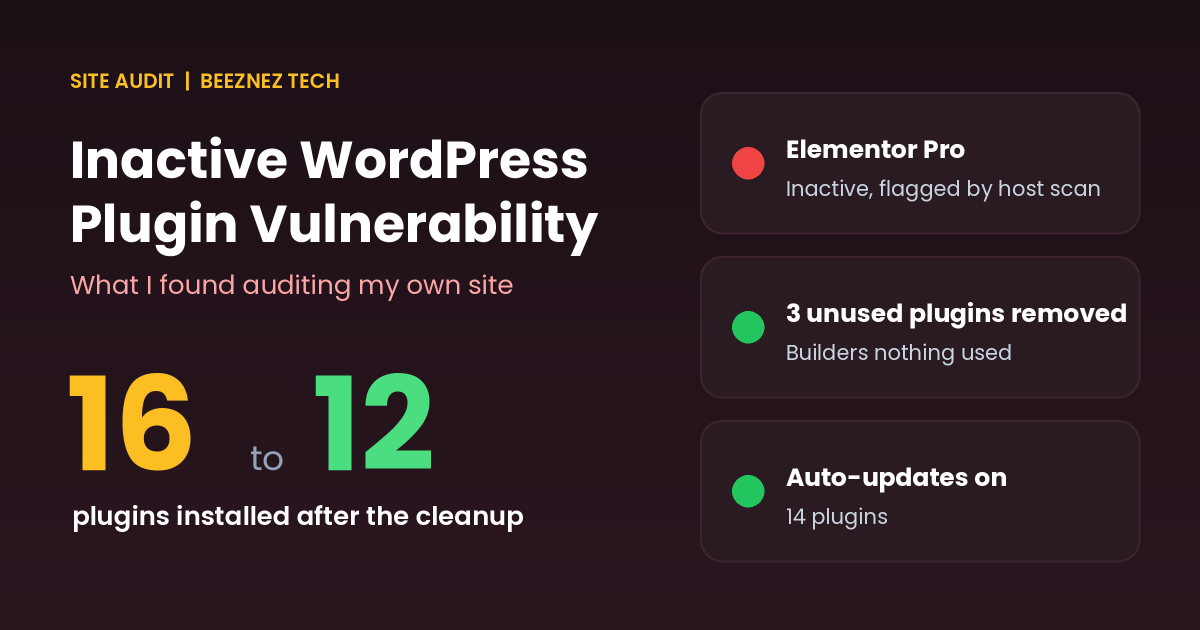
An inactive WordPress plugin vulnerability sounds like a contradiction. If a plugin is switched off, how can it be a risk? That was my first reaction when the Hostinger security scan on my own site, Beeznez Tech, flagged Elementor Pro, a plugin I had installed but deactivated.
This article walks through what I found when I audited my site for an inactive WordPress plugin vulnerability, which plugins were actually installed, why a deactivated plugin can still matter, and the exact steps I recommend for checking your own site. Everything about my setup below comes straight from my WordPress install.
What the Hostinger Scan Flagged on My Site
My site runs on Hostinger Business Web Hosting with a LiteSpeed server and PHP 8.5. When I opened the security scan results, one warning stood out: the installed version of Elementor Pro had a known vulnerability.
The odd part was that Elementor Pro was not even active. It was sitting in my plugins list with the status “inactive,” left over from an earlier stage of building the site. I had stopped using it, but I had never removed it. Running your own tools always carries hidden maintenance costs, a theme I also explored in Is n8n Really Free? The True Monthly Cost of Self-Hosting.
I then checked the details inside WordPress. Elementor Pro was at version 4.2.1, while the free Elementor plugin on the same site was at version 4.3.4. The two plugins are meant to work as a pair, so a Pro version that lags behind the free one is a warning sign by itself. WordPress also showed no update available for Elementor Pro, which can happen when a license is not connected, so updating it was not a simple one-click fix.
My Plugin Inventory: What Was Actually Installed
Before deciding what to do, I listed everything on the site. I had 16 plugins installed, 15 of them active. Here are the ones that matter for this audit, as they stood before the cleanup:
| Plugin | Version | Status | Issue |
|---|---|---|---|
| Elementor Pro | 4.2.1 | Inactive | Flagged by the Hostinger scan; behind the free Elementor version |
| Elementor | 4.3.4 | Active | Up to date |
| Ultimate Addons for Elementor | 2.9.5 | Active | Add-on for a page builder I barely use |
| Kadence Blocks | 3.7.12 | Active | Overlaps with GenerateBlocks |
| GenerateBlocks | 2.4.1 | Active | Overlaps with Kadence Blocks |
| Classic Editor | 1.7.0 | Active | Overrides the block editor |
| Site Kit by Google | 1.188.0 | Active | Update to 1.189.0 available |
Looking at that table, the bigger problem was clear. The vulnerable plugin was only one issue. I also had four tools that build or extend page layouts (Elementor, Ultimate Addons for Elementor, Kadence Blocks and GenerateBlocks), plus Classic Editor, which means the block editor is not used for most editing anyway. More plugins means more code to keep updated and more places for a vulnerability to hide.
Can an Inactive WordPress Plugin Vulnerability Really Matter?
Yes, in some cases. When you deactivate a plugin in WordPress, its files stay on your server. WordPress simply stops loading them during normal page requests. But the files are still there, and some vulnerabilities involve files that can be requested directly by a visitor or attacker without WordPress loading the plugin first.
That is why an inactive WordPress plugin vulnerability is worth taking seriously, and why security guides commonly recommend deleting plugins you do not use rather than only deactivating them. The risk is not the same for every plugin, and a deactivated plugin is generally lower risk than an active one. But the cost of removing an unused plugin is close to zero, while the cost of a compromised site is high.
There is a second, quieter risk: neglect. Inactive plugins do not show up in your daily workflow, so they stop getting updates and attention. Mine had fallen behind the free Elementor version without me noticing.
How to Check for an Inactive WordPress Plugin Vulnerability on Your Own Site
You do not need special tools to run a basic audit. Here is the process I followed:
- Open your host’s security scan. Many hosts, including Hostinger, scan for known vulnerable plugin versions. Check the results page, not just the dashboard summary.
- Go to Plugins, then Installed Plugins in WordPress. Note every plugin, its version and its status. Include the inactive ones.
- Look for pending updates. The Dashboard, then Updates screen shows what WordPress knows about. If a plugin has no update listed but is clearly outdated, it may need a license or manual update.
- Check a vulnerability database. Patchstack and WPScan both publish searchable lists of known WordPress plugin vulnerabilities. Search your plugin name and version.
- Review Tools, then Site Health. WordPress flags outdated PHP versions, inactive plugins and other basic issues here.
- Write down which plugins you actually need. If you cannot explain what a plugin does for your site in one sentence, it is a candidate for removal.
Update, Replace or Delete: How to Fix an Inactive WordPress Plugin Vulnerability
Once you know which plugin is flagged, you have three options. The right one depends on whether you still use it.
Option 1: Update it
If you use the plugin and a patched version exists, update it. Back up your site first, because major version jumps can change how a page builder renders your content.
Option 2: Replace it
If the plugin is abandoned or the developer has not released a fix, look for an alternative that is actively maintained. This is common with small add-on plugins.
Option 3: Delete it
If you are not using the plugin, delete it. Deleting it ends the inactive WordPress plugin vulnerability for good, because the vulnerable files are no longer on your server. In my case, Elementor Pro was inactive and I was not building pages with it, so deletion was the logical choice. If you might want it again later, keep your license key and download link saved before you delete the files, so you can reinstall a current version when you need it.
Do not delete a plugin that powers existing pages without checking first. Elementor Pro, for example, can supply widgets and templates that older pages depend on. Open a few of your key pages after deactivation to confirm nothing broke before you remove the files for good.
The Hidden Cost of Overlapping Page Builders
The vulnerability warning pushed me to look at something else: plugin overlap. Having both Kadence Blocks and GenerateBlocks active means two libraries of blocks loading code for the same job. Add Elementor and an Elementor add-on, and you have several layout systems on one site.
The downsides are practical:
- Speed: each active plugin can add CSS, JavaScript or database queries, depending on how it is built.
- Security: more code means a larger attack surface and more updates to track.
- Maintenance: conflicts between builders are a common source of layout bugs.
- Content lock-in: content built with one builder often breaks if you remove that builder later.
Because lock-in is real, I would not just deactivate the builders on a live site. The safer route is to check which posts and pages actually use each tool, then remove only the ones with no content depending on them.
What I Fixed and the Results
After the audit, I made five changes:
- Deleted Elementor Pro, which I was not using.
- Updated Site Kit by Google from version 1.188.0 to 1.189.0.
- Turned on automatic updates for my plugins, so security patches install without waiting for me to log in.
- Checked which of my page builders actually power any content.
- Removed the two builders and the add-on that nothing depended on: Ultimate Addons for Elementor, Elementor and GenerateBlocks.
The result: my site went from 16 installed plugins to 12. Site Kit showed the “Updated!” confirmation, and the Hostinger Malware Scanner reported that no malware was found on my Business Web Hosting plan over the last 30 days.
One caution about that scan result: the scanner checks website files only and does not include the database, and it is a different check from the vulnerability warning. A clean malware scan is good news, but it does not by itself prove the warning is gone, so I treat the vulnerability check as a separate item to confirm.
Which page builders does my site actually use?
With four layout tools installed, I checked my database and my live pages to see what each one really powered:
- Elementor: no published post or page was built with it. The only Elementor items were its default kit and one draft footer created by Ultimate Addons for Elementor. Elementor still loaded base stylesheets on my pages.
- GenerateBlocks: none of my published content used its blocks, yet it still printed inline CSS on every page.
- Kadence Blocks: my Contact page uses it, and so do two sidebar widgets, including the email sign-up form. I kept it.
How I removed them safely
I saved a snapshot of the affected content first, then deleted one plugin at a time and reloaded my homepage, Contact page, About page, Blog page and two articles after each deletion. All of them kept loading normally with no PHP errors, and the Contact page still showed its Kadence content. My homepage HTML went from 78,695 bytes to 68,199 bytes, about 13% smaller. That figure is only the size of the page’s HTML, not a full speed test, so I plan to measure page speed with PageSpeed Insights and share the numbers in a follow-up post.
Automatic updates have one trade-off: an update can occasionally change how a page looks. I keep a recent backup and check my homepage and a couple of key posts after updates roll out.
Plugin Security Checklist You Can Copy
- Run your host’s security scan at least once a month.
- Delete every plugin you do not actively use, including inactive ones.
- Treat every inactive WordPress plugin vulnerability warning from your host as a task, not background noise.
- Keep free and Pro versions of the same plugin in sync.
- Install updates within a week, after taking a backup, or turn on automatic updates for plugins you trust.
- Avoid running two plugins that do the same job.
- Check Patchstack or WPScan before installing a new plugin.
- Keep license keys and download links for paid plugins in a safe place.
Frequently Asked Questions
Is it safe to leave a Inactive WordPress Plugin Vulnerability plugin deactivated?
It is safer than leaving it active, but not as safe as deleting it. The plugin files remain on your server, and some vulnerabilities can be reached without the plugin being active. If you do not need the plugin, remove it.
Will deleting an inactive plugin break my site?
Usually not, because WordPress is not loading it. But check first. If your pages or templates were built with that plugin, deactivating it may already have changed how they display. Always take a backup before deleting.
Why does my host flag a plugin that is not even active?
An inactive WordPress plugin vulnerability still shows up in scans because security scanners usually check the files and version numbers installed on your server. They do not always distinguish between active and inactive plugins, because the vulnerable files are still present.
How often should I audit my WordPress plugins?
Once a month is a good habit for a small site. Also audit after installing or removing any major plugin.
Is the free version of a plugin affected when the Pro version is vulnerable?
Not necessarily. Free and Pro versions are separate packages with separate version numbers. Check the details of the specific vulnerability report for which versions are affected.
Inactive WordPress Plugin Vulnerability: Final Thoughts
The Elementor Pro warning on my site turned out to be a useful prompt rather than an emergency. It pushed me to list everything installed, notice the overlap between page builders, and see that an unused plugin was quietly falling out of date. If your host flags an inactive WordPress plugin vulnerability, do not ignore it, even if you thought you had switched the plugin off. Check the version, decide whether you need the plugin, and delete it if the answer is no. A lean, well-maintained site also supports the trust signals I covered in E-E-A-T and AI Content in 2026.
Related reading
- Rank Math Free vs PRO: What I Found Running Both on My Own Site
- How to Fix 404 Errors in WordPress: What My Own Log Showed About Old Tag Pages
Related reading: this article attracted a burst of spam comments within hours, which I analyzed in WordPress Comment Spam, and I checked what my server sends to browsers in WordPress Security Headers. After deleting plugins, check what they left behind in the database, as I did in WordPress autoloaded options.