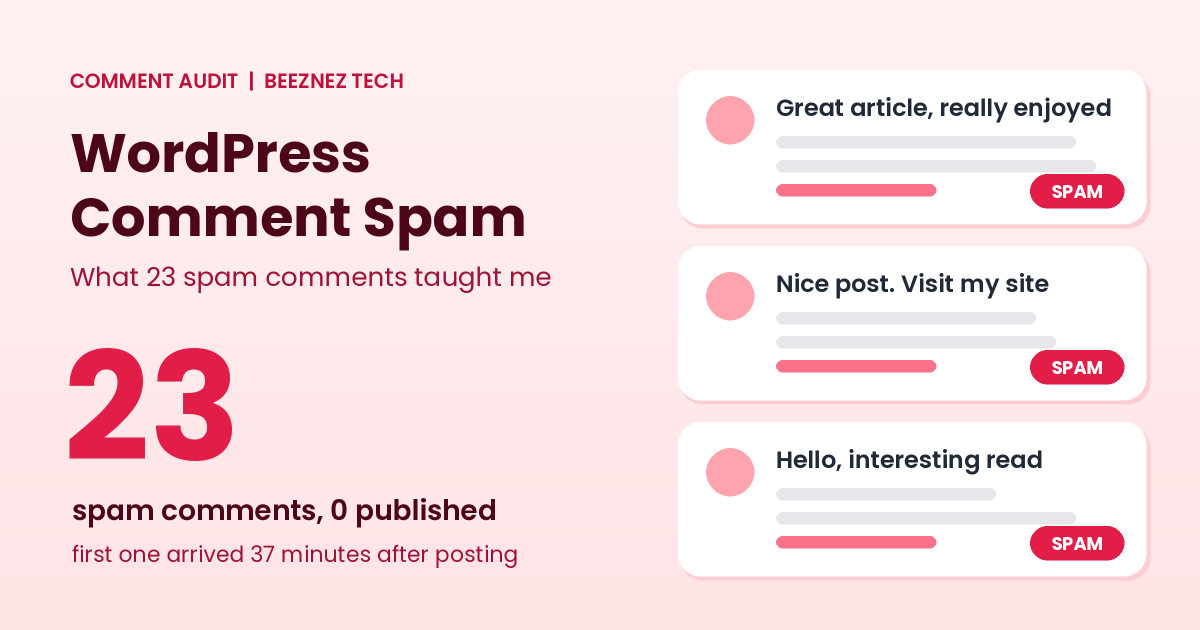
WordPress comment spam usually arrives faster than new site owners expect. On my own site, Beeznez Tech, the first spam comment landed just 37 minutes after I published an article. Within about 18 hours, 23 more had followed, all aimed at that one post.
I looked at every one of them and at my discussion settings to see what was working and what was not. Below you will find the real numbers, what the spam looked like, seven fixes I recommend, and the settings on my own site so you can compare yours.
What WordPress Comment Spam Looked Like on My Site
My article on an inactive WordPress plugin vulnerability went live on the afternoon of 6 October. The first spam comment appeared 37 minutes later. By the morning of 7 October, there were 23 in total, and every one of them was on that single article, even though comments are open on all 82 of my posts.
| Detail | What I found |
|---|---|
| Spam comments | 23 |
| Posts targeted | 1 (the newest technical article at the time) |
| Time to first spam comment | about 37 minutes after publishing |
| Window | about 18 hours, never more than 3 in one hour |
| Unique IP addresses | 21 |
| Comments containing a link | 23 (22 HTML links, 1 plain URL) |
| Comments with a website filled in | 22, across 15 different domains |
| Comments written in Russian | 7 |
| Comments published | 0 |
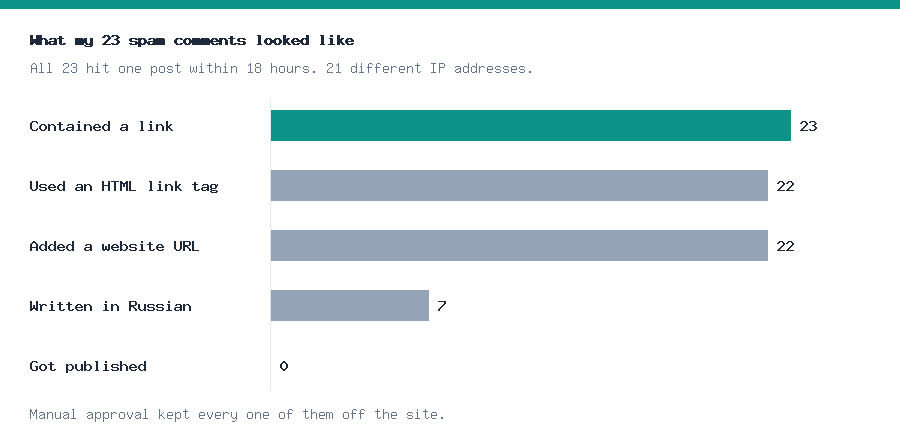
Chart made from my own comment data.
The low rate and the spread of IP addresses matter. Nothing here looked like one person hammering the form. It looked like automated tools posting a little at a time from many addresses, which is harder to block by IP alone.
The Four Types of Spam I Saw
- Flattery with a link. Several comments praised the writing in generic terms (for example, saying the author clearly cared about sentence shapes) and then slipped a link into the text. These are written to sound like a real reader.
- Plain advertising. A few simply promoted a free entertainment site or a pharmacy-style product.
- Foreign-language messages. Seven were in Russian, mostly travel-planning chatter with a link attached.
- Bare URLs. One was nothing but a link with a few words.
Almost all of them depended on the same trick: getting a link published on a real page. That is the whole point of WordPress comment spam, and it is why Google lists user-generated spam in its spam policies. A site that lets junk links through can look low quality, so catching them matters even if you get little traffic.
My Comment Settings, and Why None Got Through
None of the 23 comments were ever published. Here are the discussion settings on my site that I believe did the work:
| Setting | On my site |
|---|---|
| Comment must be manually approved | On |
| Author must have a previously approved comment | On |
| Name and email required | On |
| Close comments on old posts | After 30 days |
| Link-count rule | Off (set to 0) |
| Disallowed comment keys list | 7 entries |
| Anti-spam plugin | None installed |
The most important line is the first. Because every comment needs my approval, nothing appears on the page until I say so. That single setting stopped all 23 from going live. I do not have an anti-spam plugin on the site, so I cannot tell you how well one would have done. I have not tested one yet.
7 Fixes for WordPress Comment Spam
1. Hold every comment for approval
In Settings, then Discussion, tick “Comment must be manually approved”. It is the strongest protection WordPress has built in, and it is what worked for me. The cost is that you need to check your queue regularly.
2. Require a previously approved comment
The “Comment author must have a previously approved comment” option lets regular readers through quickly while keeping first-time commenters in the queue. Be aware that a spammer who gets one comment approved can then post freely, so approve carefully.
3. Build a disallowed comment list
The discussion screen lets you list words, domains and phrases that send a comment straight to the trash or spam folder. Add the domains and product names you see repeatedly. My list has seven entries, and it grows as new patterns appear. This is cheap, but it only catches what you already know about.
4. Close comments you do not need
I close comments on posts older than 30 days. If you don’t want discussion on some articles, you can turn comments off for them individually. Fewer open forms means fewer targets. WordPress also lets you turn comments off site-wide if you never want them.
5. Require name and email, or registration
Requiring a name and email stops the laziest bots, though many spam tools fill them in with fake values. Requiring registration is stronger but discourages genuine readers, so most small sites skip it.
6. Consider an anti-spam plugin
Tools such as Akismet check each comment against known spam patterns and filter most of it automatically. Remember that every extra plugin adds code to maintain, which I wrote about when I removed three plugins from my own site. If manual approval already handles your volume, you may not need one yet.
7. Review, delete and watch the pattern
Check your spam folder periodically, delete the contents, and look for patterns: repeated domains, targeted posts and times of day. The same habit helps with other automated traffic, as I found when I studied my logs in how to fix 404 errors in WordPress.
How to Review Your WordPress Comment Spam Queue Safely
Moderating comments takes only a few minutes if you follow a routine. This is the order I use:
- Open Comments in the admin menu and look at the Pending and Spam tabs.
- Read the comment text first. Ask whether it says anything specific about the article. Real readers mention something from the post. Spam stays generic.
- Check the website field and any links in the text, but read the address rather than clicking it.
- Mark spam as spam instead of just deleting it, so your filters and plugins learn from it.
- Approve only comments that add something, and reply to the good ones. A genuine conversation is the best defence against low-quality signals.
Why WordPress Comment Spam Finds New Sites So Fast
Spam tools do not browse your site the way a reader does. They find fresh posts through feeds, sitemaps and public listings, then submit the comment form directly. That explains why my first spam comment arrived within 37 minutes and why it hit my newest article rather than any of my other posts, even though most of them also accept comments. I cannot say why that article was chosen, but a brand-new post is the most visible target. It also explains why it spread over many IP addresses: the traffic came from a pool of machines, not one person.
The practical lesson is that a low-traffic site is not safe by being small. Any site with an open comment form on a published post is a target, so set your defences before you publish, not after the first spam appears.
Should You Turn Comments Off Completely?
For many small sites, yes, and it is a legitimate choice. Comments are only valuable if real people use them. If your site gets few genuine comments, the moderation work may not be worth it. On my site, all 23 comments I received in this period were spam, so the honest conclusion is that comments are currently costing me attention and giving nothing back.
But comments can also build trust and show real engagement, especially once you have a regular readership. My plan for now is to keep manual approval on and review the queue, rather than leaving comments open and unattended.
Common Mistakes With WordPress Comment Spam
- Auto-approving comments. A single published spam link can sit on your page for months.
- Clicking links in spam comments. Some lead to malicious pages. Judge them from the admin screen instead.
- Never checking the queue. Real comments get lost among the spam.
- Approving flattery blindly. A comment that praises you and adds a link is often spam.
- Blocking by IP only. My 23 comments came from 21 different addresses.
- Stacking several anti-spam tools. They can conflict and block real readers.
Quick Checklist
- Turn on manual approval for comments.
- Read the moderation queue at least weekly.
- Add repeated spam domains and phrases to the disallowed list.
- Close comments on old or low-value posts.
- Decide whether you need an anti-spam plugin.
- Never click links inside spam comments.
- Delete the spam folder regularly.
Frequently Asked Questions
Why do I get WordPress comment spam if my site is new?
Automated tools find new posts through feeds, sitemaps and search, not by judging how popular a site is. My first spam arrived 37 minutes after I published.
Does comment spam hurt my SEO?
Published spam links can make your pages look low quality and may link to harmful sites. Spam sitting unpublished in your queue is not visible to search engines, which is why holding comments for approval is so useful.
Do I need Akismet?
Not always. If you get a handful of comments, manual approval and a disallowed list may be enough. If the volume grows, a spam filter saves time.
Is it safe to delete spam comments in bulk?
Yes, but skim the list first for a real comment that was caught by mistake.
Should I turn off comments to stop WordPress comment spam?
It works if you do not need discussion. Many small sites do fine without comments and use email or social media for feedback instead.
WordPress comment spam: Key Takeaway
WordPress comment spam is not an indication that your site is doing something wrong; it is simply background noise on the open web, and it can start appearing within an hour. The settings that were most effective for me were also the simplest: I set it to hold every comment for approval, maintained a disallowed list, and closed comments on posts where discussion wasn’t needed. Take a moment today to review your discussion settings, as it only takes five minutes and could help prevent you from accidentally publishing someone else’s advertisement.
Related reading: comment forms are one layer of defence. For another, see WordPress Security Headers.