WordPress autoloaded options are settings that WordPress loads from your database on every single page request, whether the visitor needs them or not. If that data grows too large, every page on your site gets a little slower. Most guides tell you to check this and then show a screenshot from someone else’s site. I decided to measure mine.
Below you will find the real numbers from my own database at Beeznez Tech: how much WordPress autoloads, which plugins and themes own it, what turned out to be leftover junk, and six steps to audit your own site. The short version is that my total is healthy, but the audit still found things worth cleaning.
What Are WordPress Autoloaded Options?
Your database has a table called wp_options (the prefix may differ) that stores settings for WordPress core, your theme and every plugin. Each row has an “autoload” flag. When it is switched on, WordPress fetches that row in a single query at the start of every request, using the function described in the developer documentation for wp_load_alloptions(), and keeps it in memory.
That is useful for small settings that nearly every page needs, such as your site address. It becomes a problem when a plugin stores a large amount of data with autoload on, because that data is read on every page, including pages that never use it. WordPress Site Health warns about this when the total passes a default threshold of about 800 KB.
My WordPress Autoloaded Options: The Numbers
Here is what I found on my own site:
| Measure | My site |
|---|---|
| Total rows in the options table | 536 |
| Autoloaded options | 342 |
| Size of autoloaded values | about 110 KB (109.6 KB) |
| WordPress warning threshold | 800 KB |
| Share of the threshold used | about 14% |
| Options not autoloaded | 194 |
| Transients stored | 88 (only 10 autoloaded) |
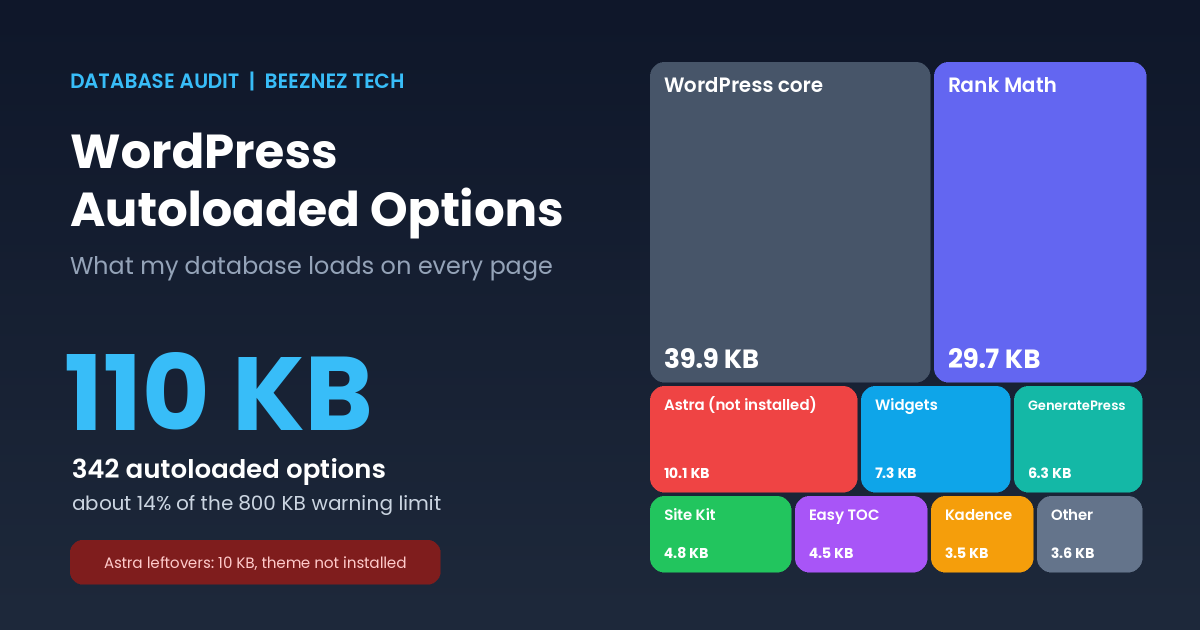
Treemap of my autoloaded data by owner. The red tile is a theme that is no longer installed.
So my total is comfortably small. If your own number is in the same range, autoload is not what is slowing your site down. The audit is still worth doing, because the breakdown shows who is using the space.
The Biggest Autoloaded Options on My Site
| Option | Size | What it is |
|---|---|---|
| rewrite_rules | 20.3 KB | WordPress URL rules |
| rank-math-options-titles | 10.7 KB | Rank Math title and meta settings |
| rank-math-options-general | 7.1 KB | Rank Math general settings |
| widget_block | 6.5 KB | Block widgets |
| astra-settings | 6.4 KB | Settings from the Astra theme |
| generate_dynamic_css_output | 6.2 KB | GeneratePress generated styles |
| wp_user_roles | 5.5 KB | User roles and permissions |
| cron | 5.0 KB | Scheduled tasks |
| ez-toc-settings | 4.5 KB | Easy Table of Contents settings |
Most of these are normal. The surprise was astra-settings. My site does not use the Astra theme. It runs GeneratePress, and Astra is not even installed.
Who Owns My Autoloaded Data
I grouped all 342 autoloaded options by the plugin, theme or system that created them:
| Owner | Options | Size |
|---|---|---|
| WordPress core and other | 186 | 39.9 KB |
| Rank Math | 29 | 29.7 KB |
| Astra theme (not installed) | 7 | 10.1 KB |
| Widgets | 24 | 7.3 KB |
| GeneratePress and related | 8 | 6.3 KB |
| Site Kit by Google | 14 | 4.8 KB |
| Easy Table of Contents | 1 | 4.5 KB |
| Kadence Blocks | 4 | 3.5 KB |
| Transients | 10 | 1.6 KB |
| Elementor and its add-on (removed) | 46 | 1.5 KB |
| Hostinger | 11 | 0.5 KB |
The grouping is my own, based on option names, so treat the figures as close estimates rather than exact accounting.
The Leftovers I Found
This was the most useful part of the audit. Two groups of options belong to software that is no longer on my site.
Leftovers from a theme I do not use
I found 20 options created by the Astra theme and its starter-template tools. Seven of them are autoloaded and total about 10 KB, which is roughly 9% of everything WordPress loads on each request. Another 13 are not autoloaded but hold about 286 KB, mostly one cached configuration entry.
Leftovers from plugins I removed
When I deleted Elementor and its add-on, as I described in my post on an inactive WordPress plugin vulnerability, the plugins themselves went away, but more than 60 of their options stayed in the database. Forty-six are autoloaded and tiny, about 1.5 KB in total. The bigger item is not autoloaded: roughly 690 KB of stored data, with a single cached library entry accounting for about 630 KB of it.
Together, that is close to 1 MB of data sitting in my options table for software that no longer exists on the site. It does not slow pages, because it is not autoloaded, but it enlarges the database and every backup. The small autoloaded part, about 11.6 KB, is loaded on every request for nothing.
How WordPress Loads Options on Every Request
Understanding the mechanism makes the numbers easier to judge. When a visitor requests any page, WordPress starts up, connects to the database and immediately runs one query that fetches every autoloaded option. The results are held in memory for the rest of that request, so later lookups are instant. That is efficient for small, frequently needed settings, and it is why WordPress autoloaded options exist at all.
The cost is that the query runs even on a page that uses none of those settings, such as a simple article. If a plugin stores several megabytes in an autoloaded option, the server reads and parses that data thousands of times a day for nothing. On a busy site that adds up. On a small site like mine, with about 110 KB, the effect is tiny.
Transients and Autoload
Transients are temporary cached values that plugins store in the options table, and they usually expire by themselves. I have 88 of them, and only 10 are autoloaded. Transients that are not autoloaded are looked up one at a time, so they do not add to the per-request load. Expired transients are normally cleaned up automatically, but they can pile up when a plugin is removed. If you see thousands, check which plugin creates them before deleting anything.
6 Steps to Audit WordPress Autoloaded Options
1. Back up your database
Before you run anything, take a full backup. Options are the control panel of your site, and deleting the wrong row can break a plugin or the theme.
2. Measure the total
Run this query in phpMyAdmin or your host’s database tool. Change wp_ if your table prefix is different:
SELECT ROUND(SUM(LENGTH(option_value)) / 1024, 1) AS autoload_kb,
       COUNT(*) AS autoload_options
FROM wp_options
WHERE autoload IN ('yes', 'on', 'auto-on', 'auto');
Compare the result with 800 KB. Under about 300 KB, you are fine. Over 800 KB, look for a culprit.
3. Find the largest options
SELECT option_name, ROUND(LENGTH(option_value) / 1024, 1) AS kb
FROM wp_options
WHERE autoload IN ('yes', 'on', 'auto-on', 'auto')
ORDER BY LENGTH(option_value) DESC
LIMIT 10;
Large entries from caches, logs or page-builder libraries are the usual suspects. Entries such as the rewrite rules and user roles are normal.
4. Group them by owner
Look at the prefix in each option name to see which plugin or theme created it. Anything from software you no longer have installed is a leftover. My Astra and Elementor entries stood out this way.
5. Decide what to do with each one
- Keep anything that belongs to active software, even if it looks large. Check with the developer first.
- Turn autoload off for big options that are only needed occasionally. WordPress offers wp_set_option_autoload() for this in recent versions.
- Delete leftovers from software you have removed, after your backup, one group at a time.
6. Measure again and check your site
Rerun the totals, then open your homepage, a post and your contact form to make sure nothing broke. Repeat the audit whenever you remove a plugin.
My Plan and What I Have Not Done
To be clear about what this article covers: I have measured and grouped my options, but I have not deleted anything yet. My next step is to back up the database, remove the Astra and builder leftovers in groups, and measure again. I will update this post with the after numbers. Related housekeeping showed up when I audited my CSS and JavaScript files and compared Rank Math’s modules in Rank Math Free vs PRO. Rank Math is the second-largest owner of autoloaded data on my site, which fits with how many modules it runs.
Common Mistakes With WordPress Autoloaded Options
- Deleting options without a backup. There is no undo button.
- Removing options that belong to active plugins. That can reset their settings.
- Treating every large option as a problem. Size matters only for autoloaded data.
- Blaming autoload for slow sites too quickly. On my site it is 14% of the warning level, so the real causes are elsewhere.
- Using a cleanup plugin blindly. Review what it will delete first.
- Forgetting leftovers after uninstalling. Deleting a plugin does not always remove its options.
Quick Checklist
- Back up the database.
- Measure the total size of autoloaded data.
- List the ten largest autoloaded options.
- Group options by plugin or theme.
- Identify leftovers from software you removed.
- Delete or turn off autoload carefully, one group at a time.
- Retest your site and re-measure.
Frequently Asked Questions
How much autoloaded data is too much?
WordPress Site Health warns at about 800 KB by default. Many guides suggest staying well below that. Mine is about 110 KB.
Do WordPress autoloaded options slow down my site?
They can, if the total is large, because they are loaded on every request. At small sizes the effect is negligible.
Is it safe to delete options from a plugin I removed?
Usually yes, if you are sure the plugin is gone and you have a backup. If you may reinstall it, you could lose its settings.
Why do deleted plugins leave options behind?
Many plugins do not clean up when you delete them. Some offer a cleanup option, and others leave data in place so your settings survive a reinstall.
Should I use a plugin to clean WordPress autoloaded options?
You can, but review the list before deleting anything. A manual check with the queries above gives you more control.
Final Thoughts
The audit of my WordPress autoloaded options gave me two answers. First, my total of about 110 KB is healthy and is not a speed problem. Second, a little over 10% of it, plus nearly a megabyte of non-autoloaded data, belongs to software I no longer use. Measure your own total, find the leftovers, and clean them carefully with a backup in hand.